


APP DOWNLOAD
Compatible models
Check the model on your device label.
Scan with your phone to download

Check your camera firmware first. Update it if needed, then follow the pairing guide.
Select a cover to open the step-by-step guide below.
01 · FIRMWARE UPDATE
Only add-on cameras purchased later may need a firmware upgrade before pairing.
Open your camera's settings in VicoHome and find System Version. Check the camera itself, not the HB1 CentralHub version.
If it is 1.19.41 or earlier, follow the upgrade steps. Later camera versions can pair directly.
Already on a later version? Open the pairing guide →Alternatively, use a compatible phone with an OTG card reader.
Download the firmware on your computer, then use a card reader to copy it to your microSD card. Copy this page link to continue on your computer.
You can download here if your phone can write files to the card. Keep the filename exactly upgrade.fw and copy it to the FAT32 card's root directory.
upgrade.fwAfter downloading, copy upgrade.fw to the root directory of a FAT32 SD card.
Downloading alone does not upgrade the camera. Keep the filename exactly upgrade.fw, copy it outside any folder on the SD card, then insert the card into the powered-off camera.
Format the card as FAT32 if it contains files.
Use a computer, or a phone with an OTG card reader, to download the file.
The filename must remain exactly upgrade.fw and must be in the card root directory.
Power off the camera, then insert the SD card.
The upgrade starts automatically. Wait until the upgrade is complete.
Remove the SD card, then double-press the camera power button.
After the update is complete, connect your camera to HB1.
Continue to pairing guide →02 · ADD YOUR CAMERA
Add a supported extra camera to your existing HB1 system in VicoHome. Complete any required camera firmware update first.
Keep the camera powered on and within 1 meter of HB1 CentralHub during pairing.
Need to check or update camera firmware? Open the upgrade guide →On the Home page, tap CentralHub Online.
On the CentralHub page, tap + Add Device.
Keep the powered-on camera within 1 meter of HB1. CentralHub searches for nearby unpaired cameras. Select your camera and tap Pair.
Wait for Powered On, or for your camera to appear under CentralHub. Pairing is then complete.
Voice of customer makes us great!
128GB SD Card • CA43 Indoor Camera • CG6S Battery Camera • Solar Panel
 128GB SD Card – $29.99
 Indoor Camera CA43 – $29.99
 Solar Panel – $16.99
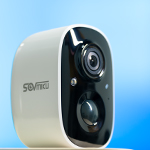 Battery Camera CG6S – $29.99
⚠️ We value all genuine feedback. There is no requirement to leave any specific type of review.
We have received your information and will process your reward shortly. Please check your email for updates.


